Traefik Reverse Proxy - Self-Host HTTPS Web Services
There are many ways to access web services running at home from the internet. The worst option would be port forwarding and redirection to a device with an unencrypted protocol such as HTTP or FTP. Make sure to avoid using simple port forwarding to HTTP or FTP!
SFTP and/or a VPN would be better. Both require certificates to authorize clients, and the data is then transmitted encrypted.
However, the setup on many routers and end devices is complicated, and for example, the built-in VPN of a FritzBox, which uses IPSec, is not particularly modern or fast.
WG-Easy (see Compose Templates) or PiVPN can help, allowing you to easily install WireGuard or OpenVPN. I have already created a video tutorial on how this works with the ei23 Smart Home Server.
A VPN doesn't solve all problems
But what if an indefinite number of clients should access our system, or we don't want to provide every user with a certificate? Or what if we operate a service that temporarily requires more resources than a small Raspberry Pi can provide?
This is where reverse proxies and SSL certificates come in. With a reverse proxy, a domain or subdomain can be called, and the reverse proxy then decides which content is made available to the user. Additionally, the content can be encrypted via SSL. This makes it possible, for example, to hide an IP behind multiple domains and still access multiple services.
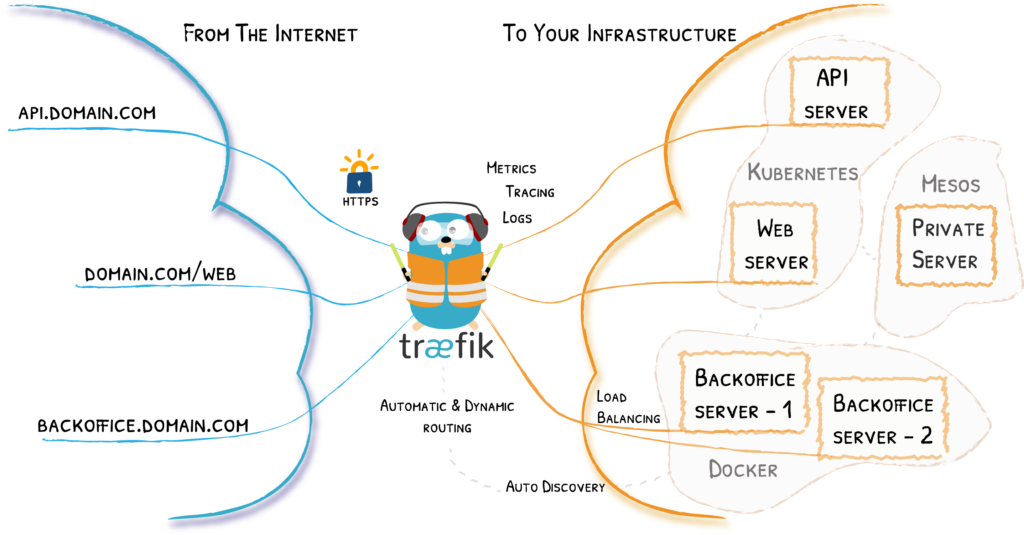
Traefik Architecture (Source: traefik.io)
There are of course other solutions, such as Nginx. However, since the ei23 Smart Home Server runs many programs as Docker containers, we use Traefik, which brings some advantages for programs in Docker and also has a good visual interface.
Proxy Configuration of Docker Containers
To configure a Docker container for Traefik, you only need to modify /home/pi/ei23-docker/docker-compose.yaml. I show how this works in the video for version 1 of the Smart Home script.
Example docker-compose Bitwarden
bitwarden:
  image: bitwardenrs/server:latest
  container_name: bitwarden
  restart: unless-stopped
  # ports:*
      # - 2223:80
  labels:
      - traefik.enable=true
      - traefik.http.routers.bitwarden.rule=Host(`example.com`)
      - traefik.http.routers.bitwarden.entrypoints=web-secured
      - traefik.http.routers.bitwarden.tls=true
      - traefik.http.routers.bitwarden.tls.certresolver=letsEncrypt
  volumes:
      - ./volumes/bitwarden:/data
With Traefik, it is not necessary to *expose ports via Docker, as long as Traefik is in the same Docker network as the containers. That's why they are commented out with # in the example above.
Example: Website in LAN (in this case the ei23 Dashboard)
labels:
  - traefik.enable=true
  - traefik.http.routers.ei23-lan.rule=(Host(`192.168.178.10`) || Host(`smarthome`))
  - traefik.http.routers.ei23-lan.priority=1
  - traefik.http.routers.ei23-lan.entrypoints=lan
Example docker-compose Grafana
labels:
  - traefik.enable=true
  - traefik.http.routers.grafana.rule=Host(`grafana.example.com`)
  - traefik.http.services.grafana.loadbalancer.server.port=3000
  - traefik.http.routers.grafana.entrypoints=web-secured
  - traefik.http.routers.grafana.tls=true
  - traefik.http.routers.grafana.tls.certresolver=letsEncrypt
Example docker-compose Nextcloud
labels:
  - traefik.enable=true
  - traefik.http.routers.nextcloud.middlewares=nextcloud,nextcloud_redirect
  - traefik.http.routers.nextcloud.tls.certresolver=letsEncrypt
  - traefik.http.routers.nextcloud.rule=Host(`nextcloud.example.com`)
  - traefik.http.routers.nextcloud.entrypoints=web, web-secured
  - traefik.http.routers.nextcloud.tls=true
  - traefik.http.middlewares.nextcloud.headers.stsSeconds=15552000
  - traefik.http.middlewares.nextcloud.headers.stsPreload=true
  - traefik.http.middlewares.nextcloud_redirect.redirectregex.permanent=true
  - traefik.http.middlewares.nextcloud_redirect.redirectregex.regex=^https://(.*)/.well-known/(card|cal)dav
  - traefik.http.middlewares.nextcloud_redirect.redirectregex.replacement=https://$${1}/remote.php/dav/
As you can see, Traefik has "Routers, Services, and Middlewares." Each service needs at least its own Traefik router.
Proxy Configuration of Load Balancers / External (IP) Addresses and Other Devices on the Network
In /home/pi/ei23-docker/volumes/traefik/traefik/dynamic/config.yml, for example, an external "load balancer" is created for Home Assistant, since Home Assistant does not run within the Docker network but in the host network. (Note! The indentation must be correct - the YAML parser requires this)
http:
  routers:
    home-assistant:
      rule: Host(`homeassistant.example.com`)
      service: home-assistant
      tls:
        certresolver: letsEncrypt


  services:
    home-assistant:
      loadBalancer:
        servers:
          - url: http://172.17.0.1:8123 # 172.17.0.1 is the default Docker gateway
This points to an HTTP URL instead of a Docker container. This is then encrypted via SSL using the "certresolver."
Commissioning Traefik / Creating SSL Certificates
Traefik itself runs as a Docker container, and in the current version of the ei23 Smart Home Server, Traefik is already pre-configured - only minor changes need to be made.
Docker-Compose for Traefik
traefik:
    image: traefik:v2.4
    container_name: traefik
    ports:
      - "80:80" # as internal http
      - "591:591" # as external http
      - "2280:8080" # config port
      - "443:443"
    volumes:
      - /var/run/docker.sock:/var/run/docker.sock:ro
      - ./volumes/traefik/traefik/:/etc/traefik/
      - ./volumes/traefik/letsencrypt:/letsencrypt
    restart: unless-stopped
Under /home/pi/ei23-docker/volumes/traefik/traefik/ is the traefik.yaml.
[...]
entryPoints:
  lan:
    address: :80
  web:
    address: :591
    http:
      redirections:
        entrypoint:
          to: web-secured
          scheme: https
  web-secured:
    address: :443

certificatesResolvers:
  letsEncrypt:
    acme:
      email: mail@example.com
      storage: /letsencrypt/acme.json
      caserver: https://acme-staging-v02.api.letsencrypt.org/directory # This is the caserver for testing
      # caserver: https://acme-v02.api.letsencrypt.org/directory
      httpChallenge:
        entryPoint: web
[...]
Here, three entry points are defined: - Port 80 (lan) is reserved for HTTP in the local network (LAN). - Port 591 (web) is reserved for HTTP externally (WAN) - The external port 80 must be forwarded to the internal port 591 of the Raspberry Pi. Since we want to use exclusively encrypted connections, we force a redirect to the web-secured entry point (443) with Traefik. - Port 443 (web-secured) is the port for HTTPS. This must be released externally on the router, and a redirect to the Raspberry Pi on port 443 must be set up.
Encryption is implemented with SSL.
After executing Docker Compose (ei23 dc) and restarting Traefik, the Traefik labels are read and the certificates are created.
However, before a certificate can be created, an email address should be provided. Through this, you may be notified about certificate expiration or other security warnings.
The Let's Encrypt service kindly provides us with otherwise very expensive certificates for free. However, there is a daily and weekly limit; as long as we are just testing whether everything works, we should use the "staging" caserver - no official certificate is issued here.
A good web browser will display a warning when accessing an address if the certificate is not secure or authentic. If you accept this warning and all desired services are still accessible, then you can switch from the staging caserver to the official one. After that, official certificates are created, and the web services are officially accessible with encryption shortly thereafter.
If Traefik and the port forwarding have been configured correctly according to this guide, the lines with the keys for your various domains/subdomains will gradually appear in the file /home/pi/ei23-docker/volumes/traefik/letsencrypt/acme.json.
This basic configuration should already provide more than enough functionality for the home server. For those who still want to dive deeper into the subject: Traefik has very good documentation: doc.traefik.io/traefik.