Installing Programs as Containers
Get familiar with editing the docker-compose.yml. You'll find it at /home/[user]/ei23-docker/docker-compose.yml.
I have a detailed video about this: 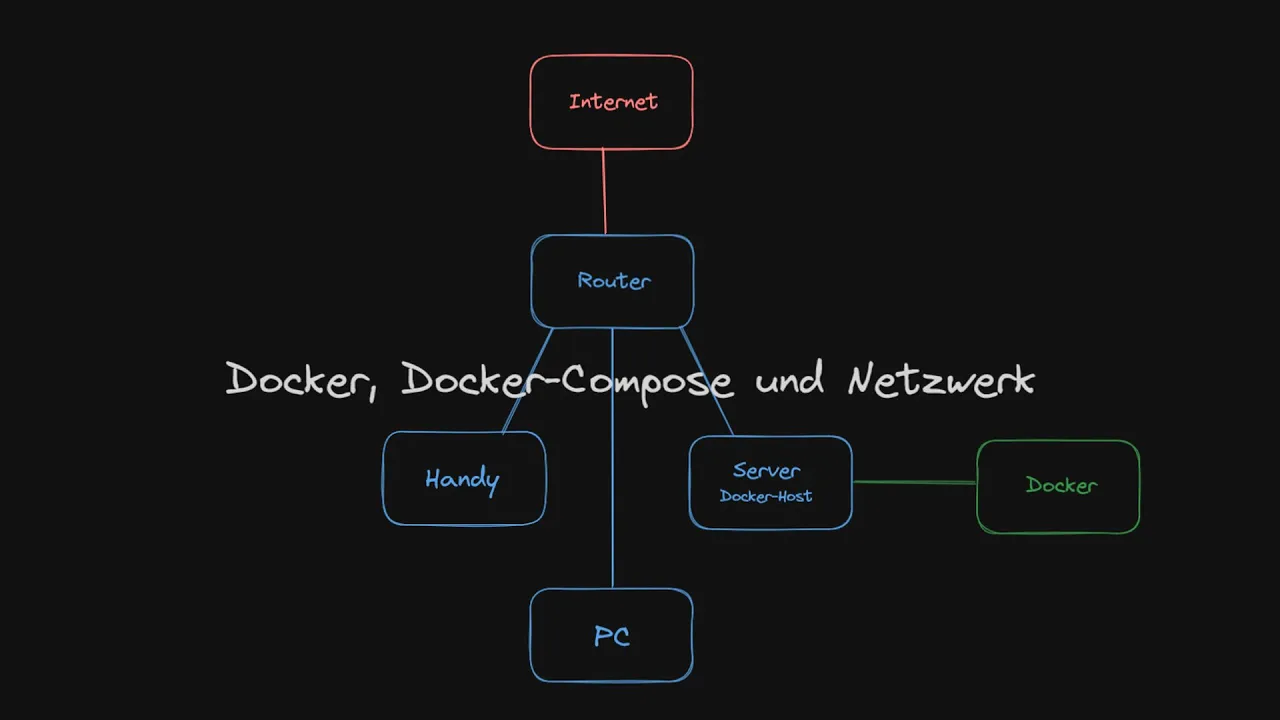
Editing
There are several ways to edit:
| Method | Command/Process |
|---|---|
| Terminal | sudo nano /home/[user]/ei23-docker/docker-compose.yml |
| VSCode Server | Via Dashboard → VSCode |
| Dashboard | Server page → "Add Docker Programs" (collapsible) |
Use the Dashboard
The ei23 Dashboard now offers a template overview directly in the browser! Just click and add.
Templates
Templates, or "installation patterns," for subsequent installation are available in /home/[user]/ei23-docker/compose_templates. You can use them and copy them accordingly into the docker-compose.yml.
Available Templates
Templates are located in the ei23-docker/compose_templates/ folder. Here are some examples:
| Template | Description |
|---|---|
homeassistant.yml | Home Assistant |
nodered.yml | Node-RED (Docker version) |
mosquitto.yml | MQTT Broker |
grafana.yml | Grafana Dashboard |
influxdb.yml | InfluxDB Time Series Database |
vaultwarden.yml | Password Manager |
traefik.yml | Reverse Proxy with SSL |
nextcloudofficial.yml | Nextcloud |
portainer.yml | Docker Management |
immich.yml | Photo Cloud |
jellyfin.yml | Media Server |
ollama.yml | Local LLMs |
open-webui.yml | Chat UI for LLMs |
frigate.yml | AI NVR for Cameras |
wireguard.yml | VPN Server |
nginxproxymanger.yml | Reverse Proxy (simple) |
pihole.yml | DNS Ad-Blocker |
syncthing.yml | File Synchronization |
mealie.yml | Recipe Manager |
freshrss.yml | RSS Reader |
n8n.yml | Workflow Automation |
nocodb.yml | Database UI (Airtable alternative) |
fireflyiii.yml | Finance Manager |
ghostfolio.yml | Portfolio Management |
archivebox.yml | Web Page Archiving |
uptime-kuma.yml | Service Monitoring |
Complete List
Look directly in the folder /home/[user]/ei23-docker/compose_templates/ to see all available templates.
Inserting a Template
- Open the docker-compose.yml
- Paste the template content at the end of the file
- Pay attention to correct indentation (YAML is sensitive!)
- Save the file
- Run
ei23 dc
Watch Indentation
Incorrect indentation can cause the installation to fail!
Applying the Template
After adjusting the docker-compose.yml, run:
Or via the Dashboard: Server page → "Docker Compose" button.
Understanding Docker Compose
Ports
Docker routing works like port forwarding on a router:
- HOST_PORT: External port accessible on the server
- CONTAINER_PORT: Internal port in the container
Example:
Here 8080 is the external port (on the server) and 80 is the internal port (in the container).
Router Principle
This works exactly like a router/modem - except Docker handles the port forwarding internally.
Volumes
Volumes bind host system folders into the container:
Example:
- ./volumes/nginx - Folder on the host (relative to docker-compose.yml)
- /etc/nginx/templates - Path in the container
Devices
Devices bind hardware into the container:
Important for: - Zigbee sticks (/dev/ttyUSB0) - Cameras (/dev/video0) - GPIO (Raspberry Pi)
Environment Variables
Environment variables configure the container:
Password Placeholder
The ei23 script automatically replaces password_placeholder with random passwords during initial installation.
Networks
Networks connect containers together:
networks:
  - default
  - custom_network

# Define at end of docker-compose.yml:
networks:
  custom_network:
    driver: bridge
    internal: true
Depends_on
Defines startup order:
Restart Policy
Controls restart behavior:
restart: unless-stopped  # Always restart, unless manually stopped
restart: always          # Always restart
restart: on-failure      # Only on error
restart: "no"            # Never restart
Architecture Notes
Depending on the architecture (armv7/arm64/amd64), there may not be a current image for the container. You can check this on hub.docker.com.
Example: Using an Older Image
Here :1.24.0 was appended to use a specific version.
ARM Support
Not all Docker images support ARM architectures (Raspberry Pi). Check this before installation.
Port Conflicts
If a port is already in use, change the host port:
Example: Complete docker-compose.yml
services:
  homeassistant:
    image: ghcr.io/home-assistant/home-assistant:stable
    container_name: homeassistant
    restart: unless-stopped
    network_mode: host
    volumes:
      - ./volumes/homeassistant/config:/config
      - /run/dbus:/run/dbus:ro
    environment:
      - TZ=Europe/Berlin

  mosquitto:
    image: eclipse-mosquitto:2
    container_name: mosquitto
    restart: unless-stopped
    ports:
      - "1883:1883"
    volumes:
      - ./volumes/mosquitto/config:/mosquitto/config
      - ./volumes/mosquitto/data:/mosquitto/data
      - ./volumes/mosquitto/log:/mosquitto/log

  grafana:
    image: grafana/grafana:latest
    container_name: grafana
    restart: unless-stopped
    ports:
      - "3000:3000"
    volumes:
      - ./volumes/grafana:/var/lib/grafana
    environment:
      - GF_SECURITY_ADMIN_USER=admin
      - GF_SECURITY_ADMIN_PASSWORD=password_placeholder

# Networks (if needed)
# networks:
#   my_network:
#     driver: bridge
Troubleshooting
Container Won't Start
# Check logs
docker compose logs [container_name]

# Start container manually
docker compose up -d [container_name]
Port in Use
YAML Syntax Errors
Reset Container
Data will be lost!
This deletes all data for the container!
# Simply via the script
ei23 fullreset [container_name]

# Manually
cd ~/ei23-docker/
docker compose stop [container_name]
docker compose rm -f [container_name]
sudo rm -r volumes/[container_name]/
docker compose up -d
Further Information
- Docker Compose Documentation
- Docker Hub - Search for images
- ei23 Dashboard - Template overview